How-to
How to Connect LMNTS to Gemini
Connect LMNTS to Gemini from its Apps page in a few short steps, so Gemini knows where you are in your learning.
Gemini can explain a tricky concept, help you work through a problem, or suggest what to learn next. But to make the most of it, it helps when Gemini knows a little more about your learning journey.
What have you already covered? Which concepts have clicked? What are you trying to figure out next?
That context often lives across different apps, conversations, and resources. LMNTS helps bring it together, so Gemini can look up your learning progress and use it to guide what comes next.
Setting it up takes about three minutes, and there's no coding involved. Let's get Gemini connected.
Before you start
You'll need:
- A LMNTS account.
- Access to the Gemini web app.
- A Google account with Custom apps available in Gemini.
Once you've added LMNTS through the web app, you can use the connection in the Gemini mobile app too.
One thing to check first: Google is rolling out Custom apps gradually, and availability can depend on your account type, plan, and region. If you can't find the Custom apps section in Step 2, the feature may not be available to your account yet. Google's help page has the latest information.
Step 1: Get your connection link from LMNTS
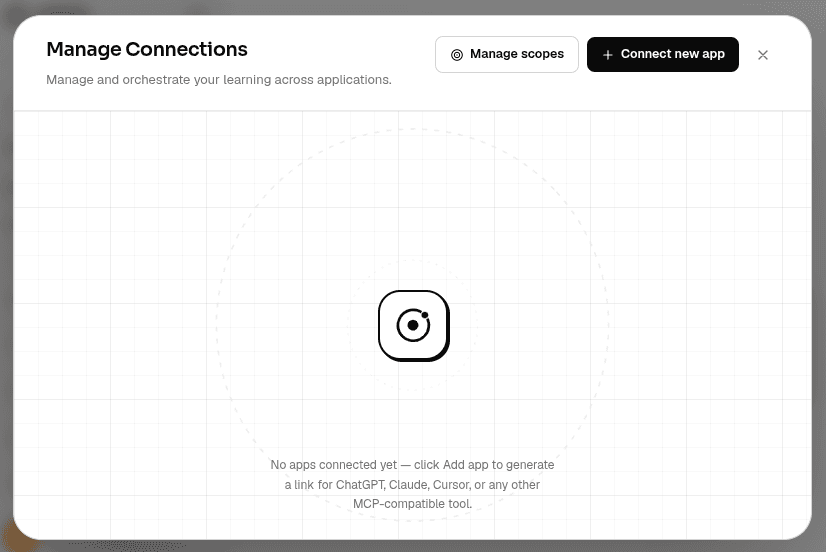
Sign in to LMNTS and click Connections in the sidebar. This opens the Manage Connections window.
Click Connect new app in the top-right corner.
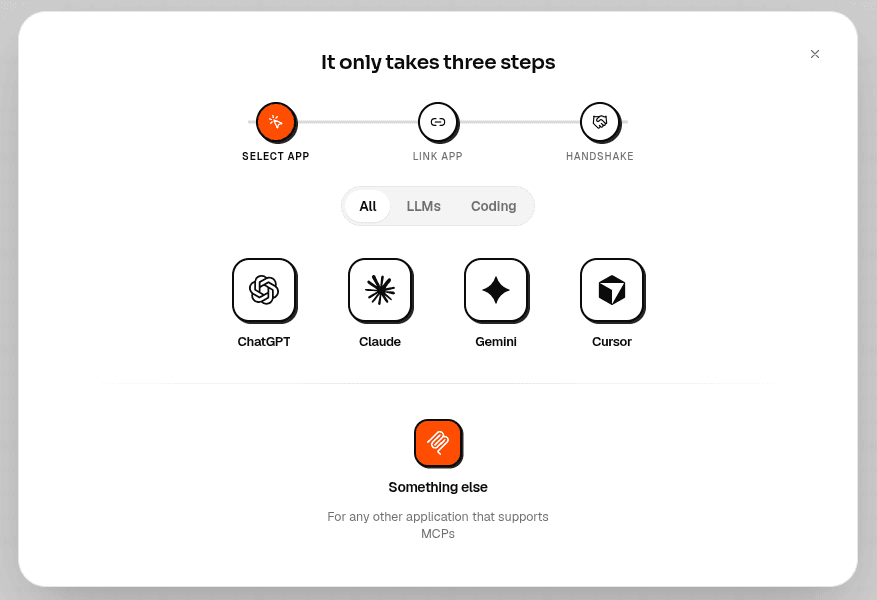
You'll see a welcome screen. Click Continue, then select Gemini from the app picker.
LMNTS will generate a personal connection link for you. Keep it handy because you'll need it in the next step.
Keep this link private. Anyone who gets hold of it may be able to use your connection, so don't share it in group chats or post it publicly.
That's all for this step. Time to open Gemini.
Step 2: Add LMNTS to Gemini
LMNTS gives you a button that opens the Gemini Apps page.
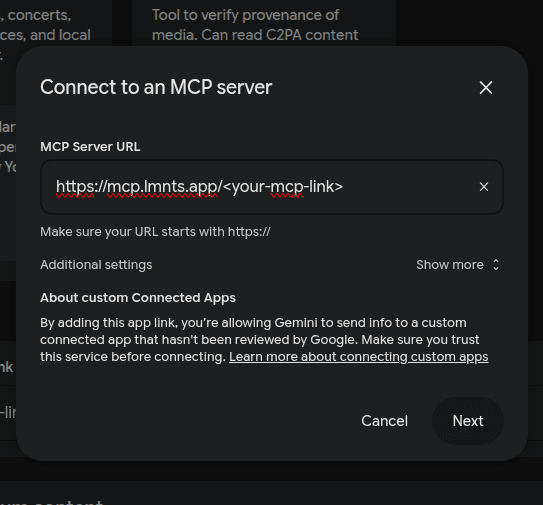
Find the Custom apps section, paste your LMNTS connection link into the box, and click Next.
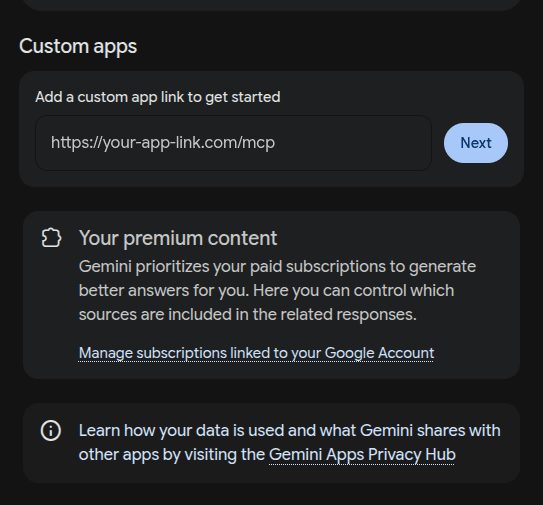
A window called Connect to an MCP server will appear, with your link already filled in. You don't need to change anything here. Click Next again.
Review the connection permissions
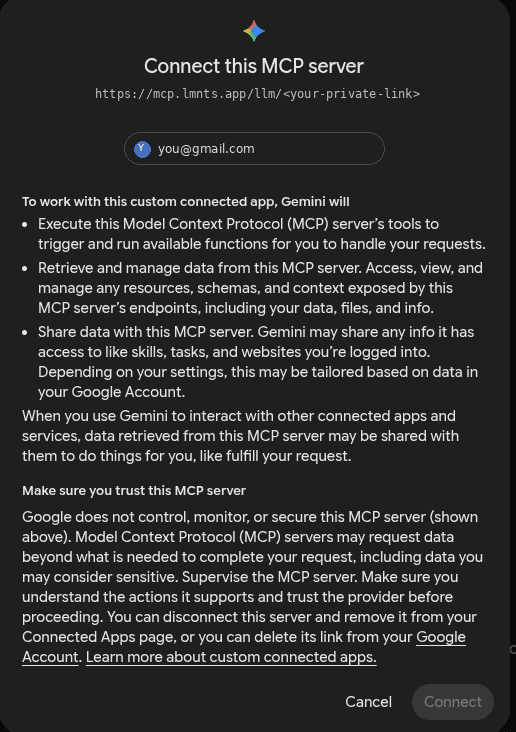
Gemini will show you a screen explaining what the custom app can do.
Take a moment to read through the listed permissions. When you're ready, scroll down, tick I understand and accept, and click Connect.
Give your app a name
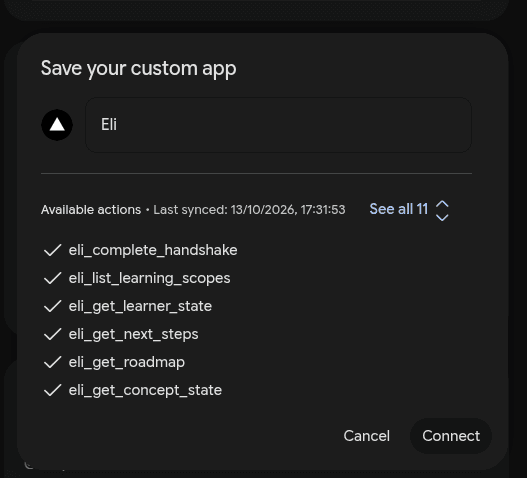
Almost there. The next window is called Save your custom app.
Enter Eli MCP as the name. Gemini will also show you the actions available through LMNTS, such as checking your learning progress, finding what to study next, and looking up your understanding of a concept.
Review the list, then click Connect.
And that's Gemini configured. Now let's make sure it can connect to your learning context.
Step 3: Introduce Gemini to LMNTS
Head back to LMNTS. You'll find a short message and a Copy prompt button.
Click it, open a brand-new chat in Gemini, paste the message, and send it.
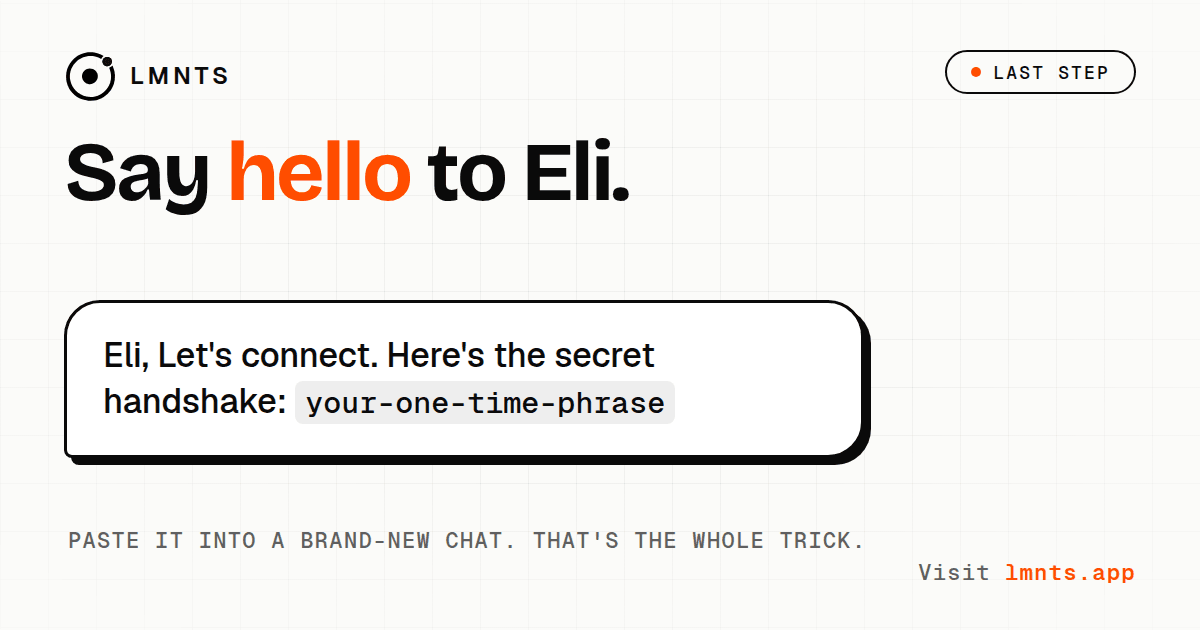
Send the message exactly as it is. It contains a one-time phrase that Gemini uses to verify your connection with LMNTS.
Here's what happens:
- Gemini sends the phrase to LMNTS.
- LMNTS verifies it.
- Gemini appears as connected in your Manage Connections window.
The phrase expires after about ten minutes, so send it soon after generating it. The process should only take a few seconds.
Try it out
Now ask Gemini:
“What should I study next?”
If Gemini can use your learning context to suggest a relevant next step, you're ready to go.
From here, you can keep learning with Gemini while LMNTS helps it understand what you've already covered and where you want to go.
Something not working? Here's what to check.
The pairing phrase expired
The phrase is only valid for about ten minutes. Head back to LMNTS, click Generate a phrase, copy the new prompt, and send it in Gemini.
The connection link expired
If you didn't finish the setup in time, LMNTS may have invalidated the link. Click Get a new link and start again from Step 1.
Gemini asks for credentials
The connection should use the information contained in your personal link. If Gemini asks you to sign in to the MCP server, expand Show more and leave the credential fields empty, as described in the current setup flow. If it still won't connect, check the link and try generating a fresh one.
You can't find the Custom apps section
Custom apps may not have reached your Google account yet. Availability can vary by account type, plan, and region. Check Google's Gemini Apps help page for the latest details.
Want to disconnect Gemini later?
You can disconnect whenever you like.
Open Connections in LMNTS, select Gemini, and disconnect it. Then head to Gemini's Connected Apps page and remove the LMNTS custom app there too.
If you want to reconnect later, you can go through the setup again.
Connect your other AI tools, too
If you use more than Gemini, LMNTS can connect your learning context across other AI tools as well.
Here are the setup guides:
Last checked: October 2026.
Google updates Gemini's interface and available features from time to time. If a screen looks different from the screenshots above, Google's help page for custom apps is the best place to check.
You can also visit lmnts.app to learn more about carrying your learning context across apps.