How-to
How to Connect LMNTS to ChatGPT
Connect ChatGPT to LMNTS in about three minutes, so it can look up your learning context before it answers.
Every new ChatGPT chat starts with the same little ritual. Before you can ask your real question, you have to catch it up:
“Okay, so I’m learning this. I already know that. And we talked about this other thing last week…”
It isn’t ChatGPT’s fault. It simply has no idea you’re halfway through something. So you explain yourself again, then open another chat tomorrow and do it all over.
LMNTS takes that job off your plate. Connect it once, and ChatGPT can look up your learning context before it answers. It gets a clear picture of what you’ve already covered, and what makes sense to learn next. You pick up where you left off instead of starting from zero.
The whole Setup takes about three minutes and there is no code involved. Here’s how.
Before you start
You'll need a LMNTS account, ChatGPT open in your browser at chatgpt.com, and an account that supports adding custom MCP servers.
A quick note: this setup currently works on ChatGPT's web version. We haven't covered the desktop and mobile apps yet. Access to custom MCP servers also varies by account and workspace.
If you don't see Add custom MCP server in Step 2, your account might not have access to the feature yet. We'll get to that in the troubleshooting section.
Step 1: Get your connection link from LMNTS
Sign in to LMNTS and click Connections in the sidebar. This opens the Manage Connections window.
In the top-right corner, click Connect new app.
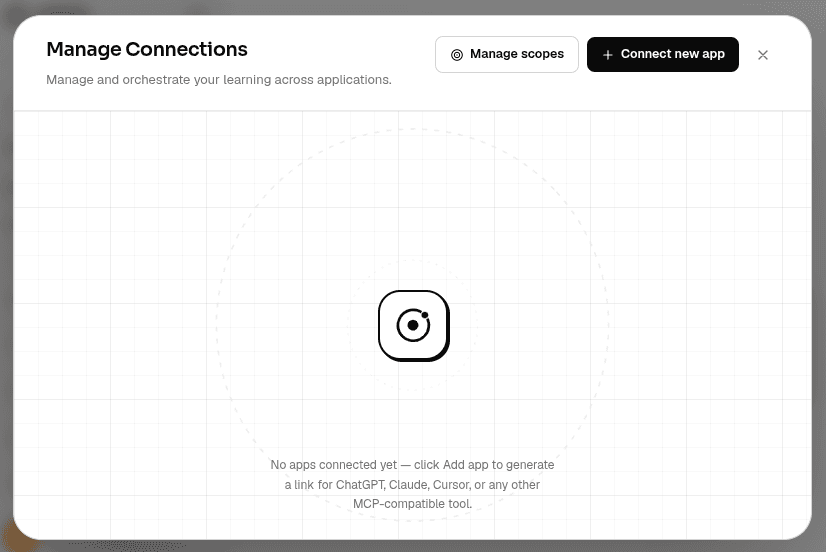
You'll see a welcome screen. Click Continue, then choose ChatGPT from the list of apps.
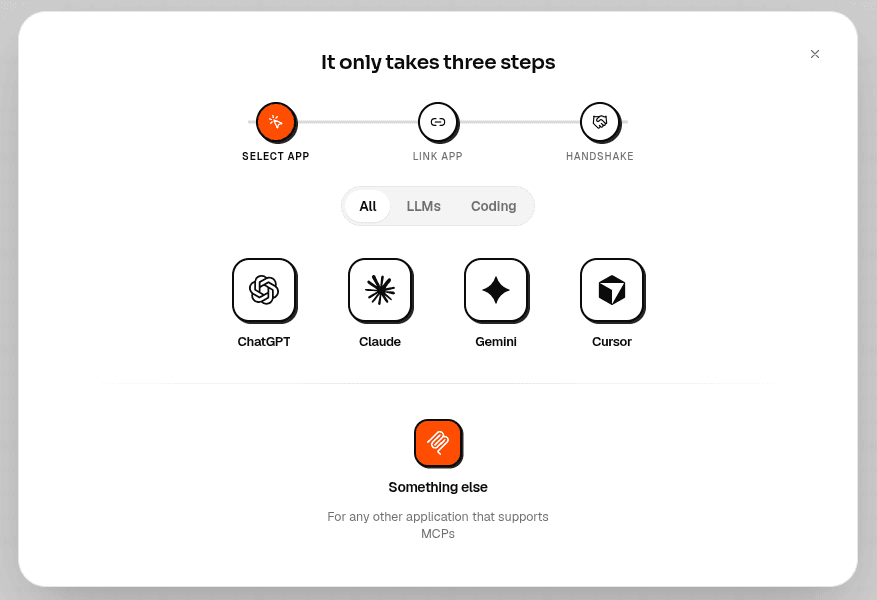
LMNTS will generate a personal connection link for you. You'll need it in the next step, so keep it handy.
Keep the link private. Anyone who gets hold of it may be able to use your connection, so avoid sharing it in messages or posting it anywhere public.
That's everything you need to do in LMNTS for now. Let's switch over to ChatGPT.
Step 2: Set up the connection in ChatGPT
LMNTS provides a button that takes you to ChatGPT's Plugins page. You can also go straight there with this link: Open ChatGPT Plugins. Once you're on the page, click Add in the top-right corner, and select Add custom MCP server.
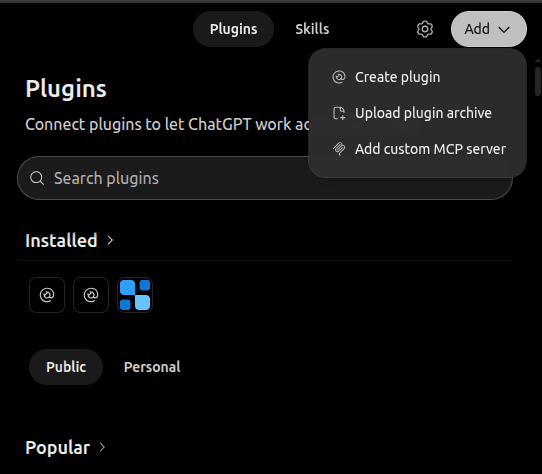
You'll see a form with a few fields to fill in:
- Name: Enter
Eli MCP. - Server URL: Paste the connection link you copied from LMNTS.
- Authentication: Select No authentication.
- Icon and description: You can leave these blank.
Tick I understand and want to continue, then click Create as a plugin.
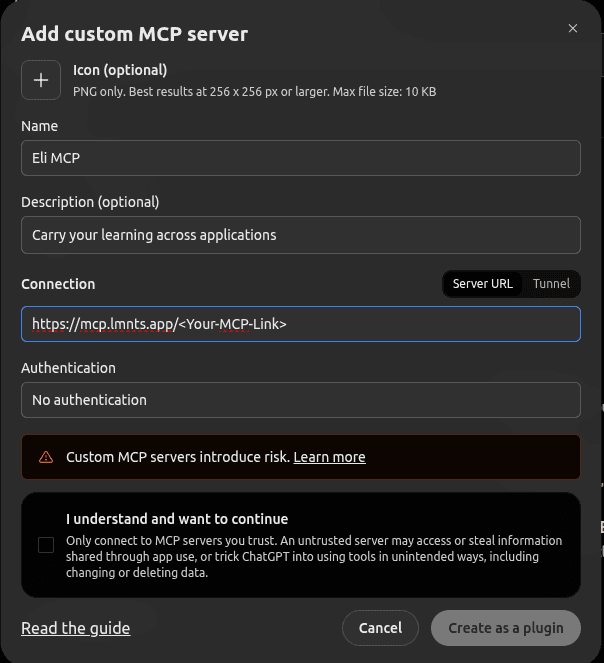
ChatGPT will show you a warning about connecting custom servers. Take a moment to review it and make sure you're comfortable with the connection.
Next, you'll see a short explanation of how the connector works. Click Connect Eli Mcp to continue.
And yes, that's how ChatGPT capitalises the name. We didn't choose that spelling!
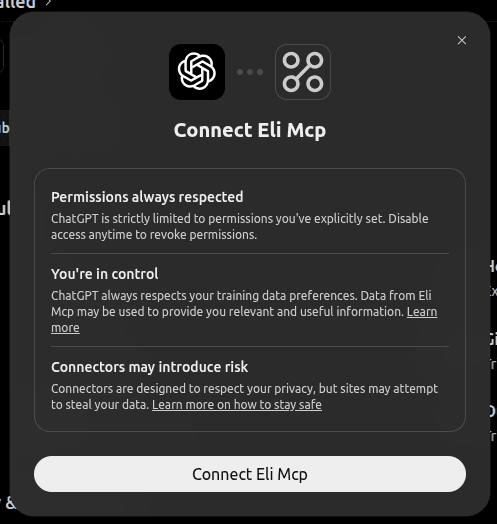
Set your permissions
There's one more setting worth checking before you move on.
ChatGPT may ask you to approve each time it uses an LMNTS tool. Depending on your permissions, some tools may also be restricted.
To change this, open ChatGPT's plugin settings, select Eli MCP, and click Permissions at the top.
Choose Allow all tools if you're happy for ChatGPT to use all the tools available through the connector.
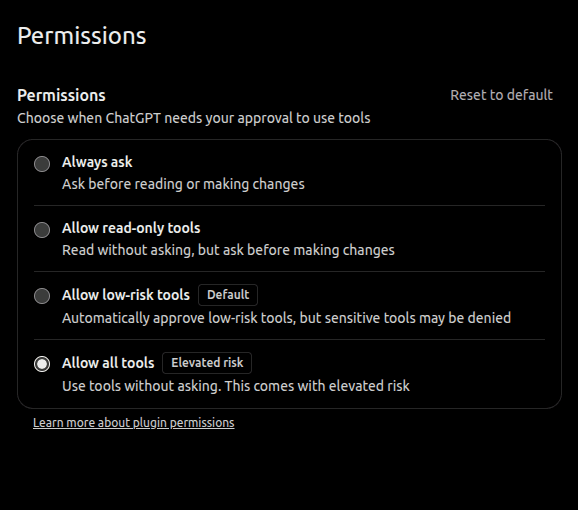
You might notice an Elevated risk warning next to this option. It appears because you're allowing access to every tool provided by the connector.
LMNTS tools are designed to retrieve your learning context and record what you've studied. Before granting access, review the permissions and LMNTS's data practices so you know what you're comfortable sharing.
If you'd prefer to approve tool use individually, you can choose a more restrictive permission setting. You'll just have a few extra prompts to deal with along the way.
Once you're happy with the settings, you're ready for the final step.
Step 3: Connect the two
Head back to LMNTS. You'll find a short message with a Copy prompt button.
Click it, open a brand-new chat in ChatGPT, paste the message, and send it.
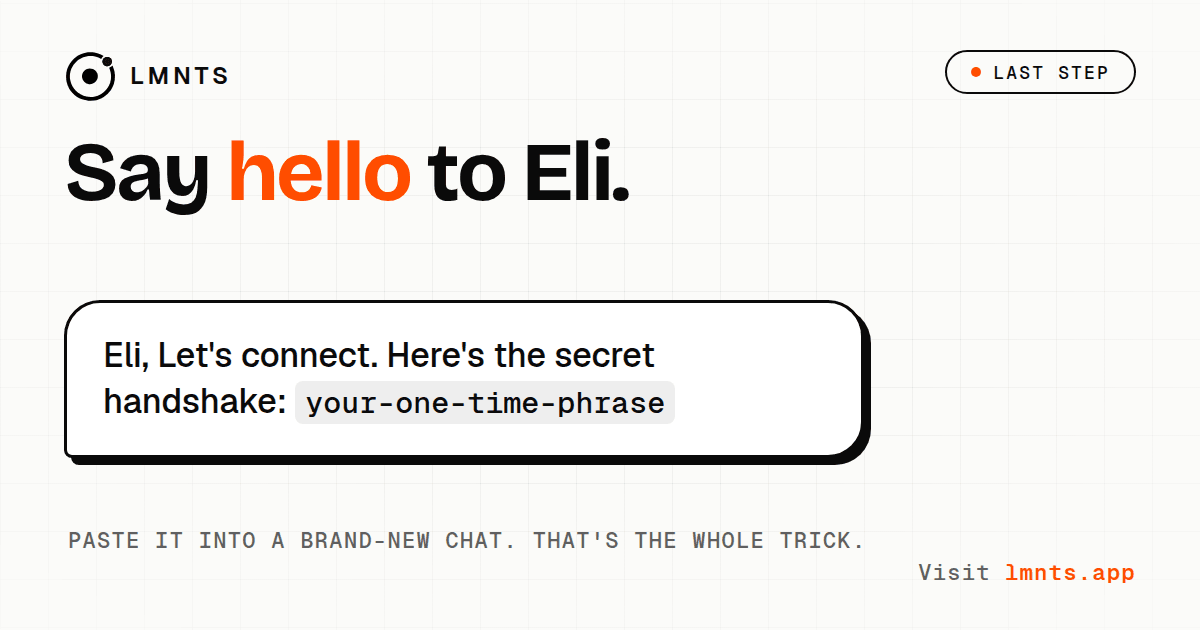
Send the message exactly as LMNTS provides it. It contains a one-time phrase that helps verify your connection.
Here's what happens next:
- ChatGPT sends the phrase to LMNTS.
- LMNTS verifies the phrase.
- Your connection is established.
The phrase expires after about ten minutes, so send it soon after generating it. Once the process finishes, ChatGPT should appear as connected in the Manage Connections window in LMNTS.
Give it a quick test
Open ChatGPT and ask:
“Eli, What should I study next?”
If ChatGPT can draw on your existing learning context to give you a relevant answer, everything is working.
Now you can spend more time learning and less time bringing ChatGPT up to speed.
Having trouble? Here's what to check.
The phrase expired
The pairing phrase is only valid for about ten minutes. Go back to LMNTS, click Generate a phrase, copy the new prompt, and send it in ChatGPT.
The connection link expired
If you took too long to finish setting things up, LMNTS may have invalidated the link. Click Get a new link and start again from Step 1.
ChatGPT keeps asking for permission
Open the Permissions settings for Eli MCP and check which tools are allowed. If you want fewer interruptions, you can select Allow all tools, provided you're comfortable with the access it grants.
You can't find “Add custom MCP server”
Your account or workspace might not support the feature yet. Check OpenAI's guide to developer mode and full MCP connectors for the latest information.
If you're still stuck, visit lmnts.app for help.
Changed your mind? You can disconnect anytime.
Open Connections in LMNTS, select ChatGPT, and disconnect it. Then remove Eli MCP from ChatGPT's plugin settings too. That way, everything is cleaned up if you decide to reconnect later.
Connect your other AIs, too
If you use Claude or Gemini as well, you can connect those to LMNTS. Your learning context can follow you across the AI tools you use.
Here are the setup guides:
Last checked: October 2026.
ChatGPT occasionally changes its interface and connector availability, so a button might look a little different by the time you follow this guide. If that happens, OpenAI's help center is a good place to check.
LMNTS: Learn anywhere. Carry it everywhere. Visit lmnts.app.